Managing customer support efficiently is a critical aspect of any business. Salesforce provides powerful tools like Case Entitlements and Case Milestones to ensure your service teams meet customer expectations and adhere to service level agreements (SLAs). Let’s break down these concepts and explore how to implement them in your Salesforce org.
What is a Case Entitlement?
Entitlements in Salesforce represent the support your customers are entitled to receive. They help track which services a customer is eligible for based on their purchase or contract. Entitlements work closely with cases, ensuring that your team delivers the right service to the right customer.
Key Features of Entitlements:
- Define what support customers are eligible to receive.
- Automatically associate entitlements with cases.
- Manage customer service agreements effectively.
- Enable support tracking for different accounts or contacts.
What is a Case Milestone?
Milestones are specific steps or key performance indicators (KPIs) within an entitlement process. They define what actions or resolutions need to occur within specific timeframes, such as responding to a case within 4 hours or resolving it within 24 hours.
Key Features of Milestones:
- Measure compliance with SLAs.
- Automate reminders and escalations to meet deadlines.
- Track milestone completion in real time.
- Improve accountability in customer service teams.
How to Implement Case Entitlements and Case Milestones in Salesforce
Step 1: Enable Entitlements in Salesforce
- Go to Setup:
- Navigate to Setup and search for “Entitlement Management” in the Quick Find box.
- Enable Entitlements:
- Click Enable Entitlement Management and save your changes.

Step 2: Create Milestones
- Go to Setup:
- Search for Milestones in the Quick Find box.
- Create a New Milestone:
- Define the name (e.g., “First Response Time”).

Step 3: Create an Entitlement Process
- Go to Setup:
- Search for Entitlement Processes in the Quick Find box.
- Create a New Process:
- Define the name, start time, and business hours for the process.

- Link the milestone to an entitlement process.

Step 4: Set Up Milestone Actions
- Define Time-Dependent Actions:
- Create actions for milestones, such as sending notifications or escalating cases if a milestone is breached.
- Create Completion Actions:
- Specify what happens when a milestone is achieved, such as updating case status or sending alerts.
Step 5: Set Up the Case Page Layout for Fields and Feed View for Milestone Tracker
1. Customize the Case Page Layout
- Navigate to Setup:
- Go to Setup and search for Object Manager in the Quick Find box.
- Select the Case object.
- Edit the Case Page Layout:
- In the Object Manager, go to Page Layouts under the Case object.
- Select the page layout where you want to add entitlement and milestone details (e.g., Case Layout).
- Add the Entitlement Fields:
- Drag and drop the Entitlement Name field into the Case Detail section.
- Include other entitlement-related fields such as Entitlement Process, Remaining Response Time, or SLA Violation, if needed.
- Add Milestone Fields:
- Drag and drop fields like Current Milestone, Target Date, or Milestone Status onto the layout to provide case-specific details for milestone tracking.
- Save Your Changes:
- Click Save to apply the updates to your Case layout.

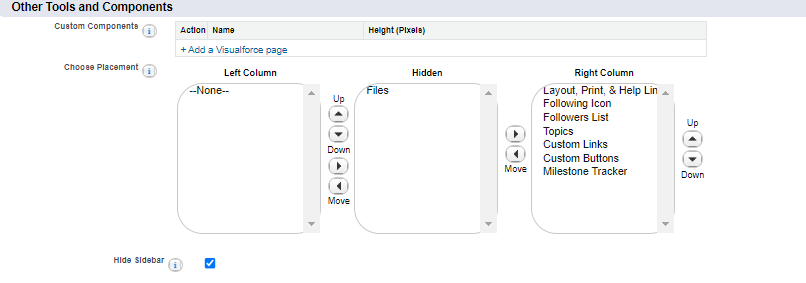
2. Add the Milestone Tracker to the Page Layout (Feed View)
The Milestone Tracker component gives your agents a visual representation of milestone progress directly on the Case page.

- Click on the Feed View Section:
- While editing the Case Page Layout, Click on the Feed View section of the layout on Top.
- Place the Milestone Tracker in the Feed View:
- Drag the Milestone Tracker into the Feed View area. This ensures that milestones will be visible for agents when viewing cases in real-time.
- Save Your Changes:
- Save the page layout after adding the Milestone Tracker.
Step 6: Create an Entitlement Record
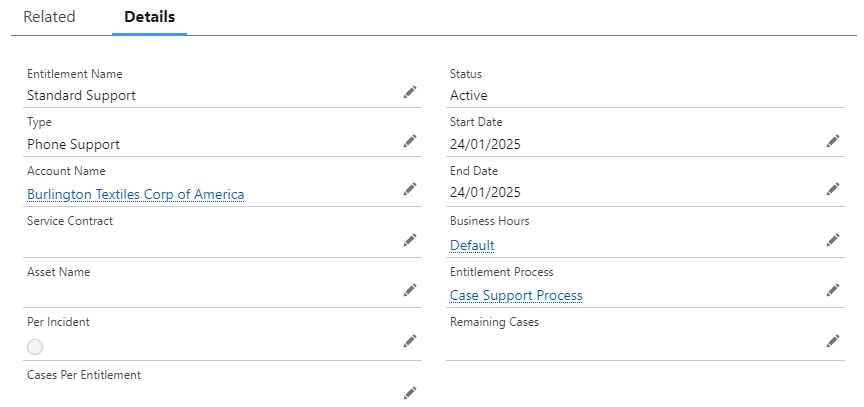
Once the entitlement process and milestones are configured, you need to create entitlement records and associate them with accounts or assets to reflect the services a customer is eligible for.
Steps to Create an Entitlement Record:
- Navigate to the Entitlements Tab:
- In Salesforce, go to the App Launcher (🔎) and search for Entitlements.
- Click on the Entitlements tab.
- Create a New Entitlement:
- Click the New button.
- Fill in the Required Fields:
- Name: Provide a descriptive name for the entitlement (e.g., “Gold Support Plan”).
- Account: Select the account this entitlement applies to.
- Start Date and End Date: Specify the validity period for the entitlement.
- Entitlement Process: Choose the entitlement process (previously created) to define the associated milestones.
- Save the Record:
- After filling in all the details, click Save to create the entitlement record.
- Assign Entitlements to Contacts (Optional):
- If this entitlement applies to specific contacts, link them to the entitlement record using the Contacts related list.
Step 7: Display the Entitlement on the Case Record
To associate and display the entitlement on a case, follow these steps:
Manually Associate Entitlements
If automation isn’t used, the entitlement can be manually added to the case:
- Open a case record.
- Find the Entitlement lookup field on the Case page layout.
- Search for and select the relevant entitlement.
- Save the case record.

Best Practices for Using Entitlements and Milestones
- Define Clear SLAs: Ensure your team knows the expected response and resolution times for different cases.
- Use Automation: Leverage Salesforce automation tools to minimize manual work and enforce entitlement rules.
- Monitor and Optimize: Regularly review milestone performance and tweak processes for better efficiency.
- Provide Training: Ensure your support team understands how entitlements and milestones work in Salesforce.
Conclusion
Case Entitlements and Case Milestones in Salesforce help ensure your customer support team adheres to SLAs and delivers excellent service. By implementing these features, you can streamline support processes, improve accountability, and enhance customer satisfaction.
Are you ready to take your service management to the next level? Let us know your thoughts or questions in the comments below!